General
Communities / Discussions
Library / Resources
General | Top
Q: What is my username/password?
A: Your login credentials are the same username and password that you use to log in to the main site. If you have forgotten your login credentials or need assistance with your login information, please click here.
Q: How do I update my contact information?
Navigate to your profile page: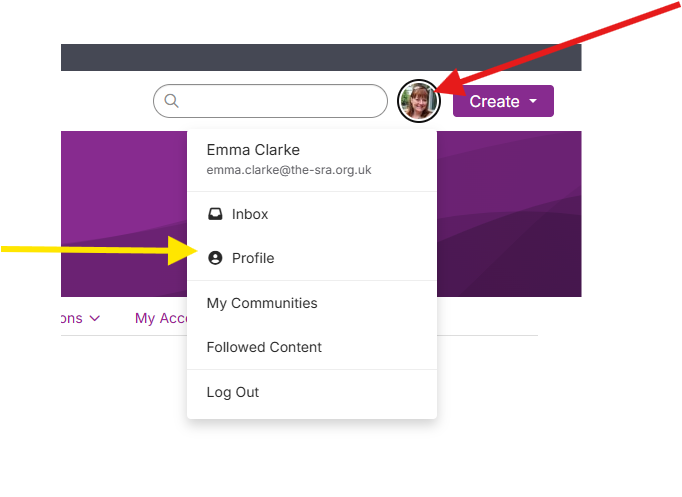
On your profile page, please select the pencil icon next to "Contact Details" in the left column.
Q: How do I control what information is visible in My Profile?
A: Please navigate to your profile page, then select the "My Account" tab and choose "Privacy Settings" from the drop-down menu. This will let you control what information is visible to whom. After you’ve made changes, click the “Save Changes” button at the bottom of the page.
Communities / Discussions | Top
Q: What are communities?
A: Communities allow you to participate in discussions and share resources with other members.
Q: What communities do I already belong to?
A: Go to “Communities” in the main navigation bar. Select “My Communities” to view the communities you currently belong to.
Q: How can I control the frequency and format of emails I receive?
A: Navigate to your profile and click on the "My Account" tab. Choose "Community Notifications" from the drop-down menu. On that page, you can view and control your subscription options.
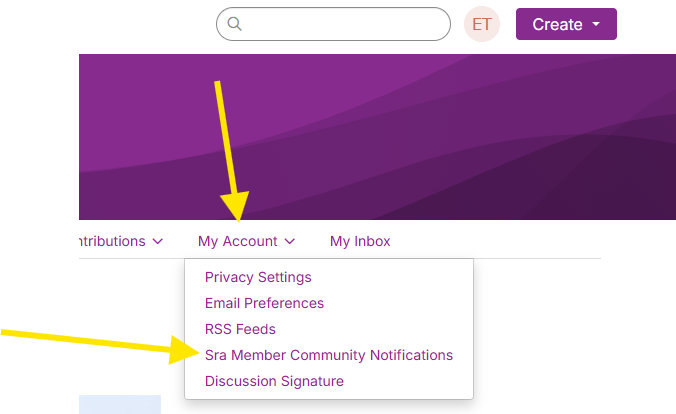 For each discussion, you have the following delivery options:
- Real time: sends an email every time a new message is posted.
- Daily digest: sends one email to you each day, consolidating all of the posts from the previous day.
- No Email: allows you to be part of the group without having emails sent to you. You can still post and read others’ messages by logging into the community site.
- Consolidated Digest: Allows you to combine multiple communities into one notification email.
Q: How do I respond to others’ posts?
A: To respond to a discussion post, please navigate to the discussion post and click “Reply" to send your message to the entire community.
To send a message to the only author of the post, please select “Reply Privately” (located in the "Reply" drop-down).
We recommend replying privately for simple comments like “me, too” and "I agree/disagree" that add little value to the overall discussion; and replying to the entire community when you are sharing knowledge, experience or resources that others could benefit from.
Q: How do I start a new discussion thread?
A: Go to the Discussions page and click the ‘Start New Thread’ button at the top right.
From an email for a particular discussion group, you can use the “Post Message” link located at the top of the discussion email. Each community also has a unique email address. Save that to your address book, and easily start a new post like you would a regular email.
Q: What types of notifications will I receive and how will receive them?
A: You will receive email digests of community activity in real time, weekly, or not at all depending on how you have set your notification preferences (see 'How can I control the frequency and format of emails I receive?' above). You will receive email notifications with responses to your posts and any discussions you are following.
Q: Can I search for posts across all the communities?
A: Yes, please enter a keyword in the search bar located in the main navigation.
Q: How do I see a listing of all of the posts to a specific Community?
A: Click through the community's landing page, then click on the “Discussions” tab. If you see a post you’re interested in, click the subject line which will take you to the entire thread.
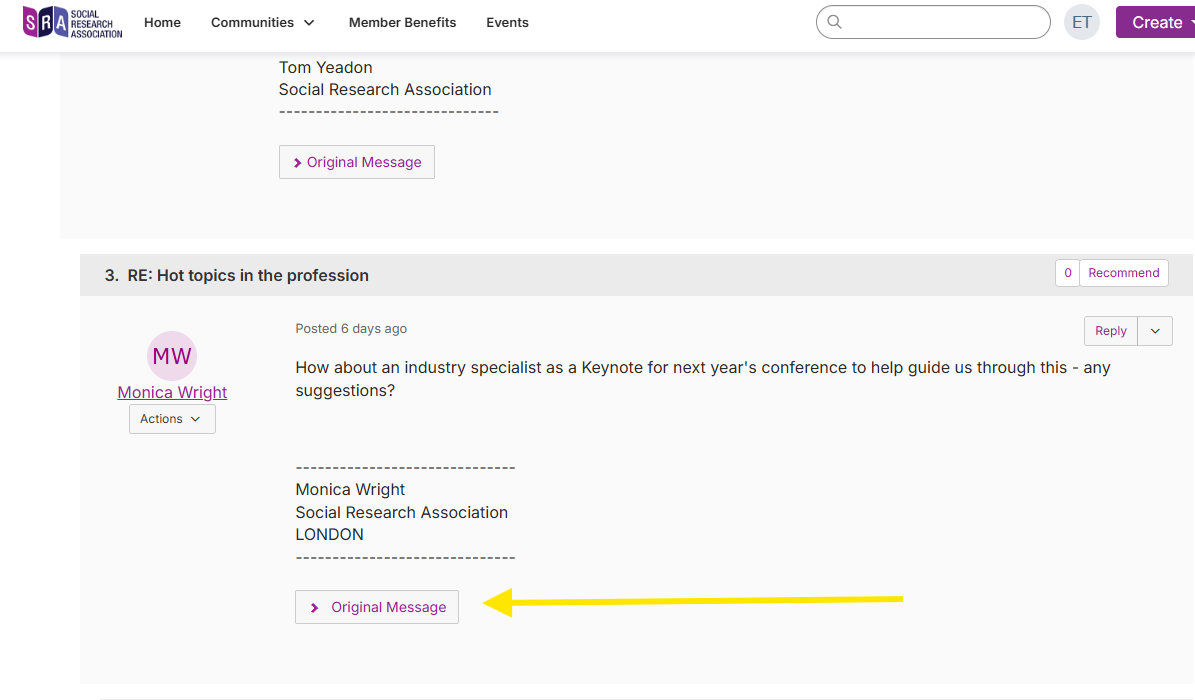
“Show Original Message” at the bottom of all of the posts in a thread will display the original message that started that discussion.
Libraries | Top
Q: How do I find resources that may have been uploaded by other members?
A: If you know which library the resource might be located in, find the affiliated community via the My Communities page. Click through the community's landing page, then click on the “Library” tab .
If you do not know where the resource might be, enter search terms in the main search box the same way you might enter search terms into Google or another search engine.
Q: How do the libraries get populated?
A: The libraries are populated in two ways:
1. When you include an attachment in a discussion post, the system automatically places it in the affiliated library.
2. You can also upload documents directly to a library by using the “Library Entry” link found under “Create” in the main navigation
or "Create Entry" button on any community's library page. Library resources are not required to be associated with a discussion thread.
Q: How do I upload a file?
A: Select the “Library Entry” link found under “Create” in the main navigation or "Create Entry" on any community landing page. Please note that uploading a document is accomplished by completing a few steps, and each step must be completed before you can move on to the next:
- Choose a title for your document, and include a description (optional). Select the library to which you’d like to upload it, and select a folder to which you’d like to upload it (optional). Then, choose an Entry Type (most will be Standard Files, but be cognizant of any copyright licensed material). Once you have completed these steps, please click “Next.”
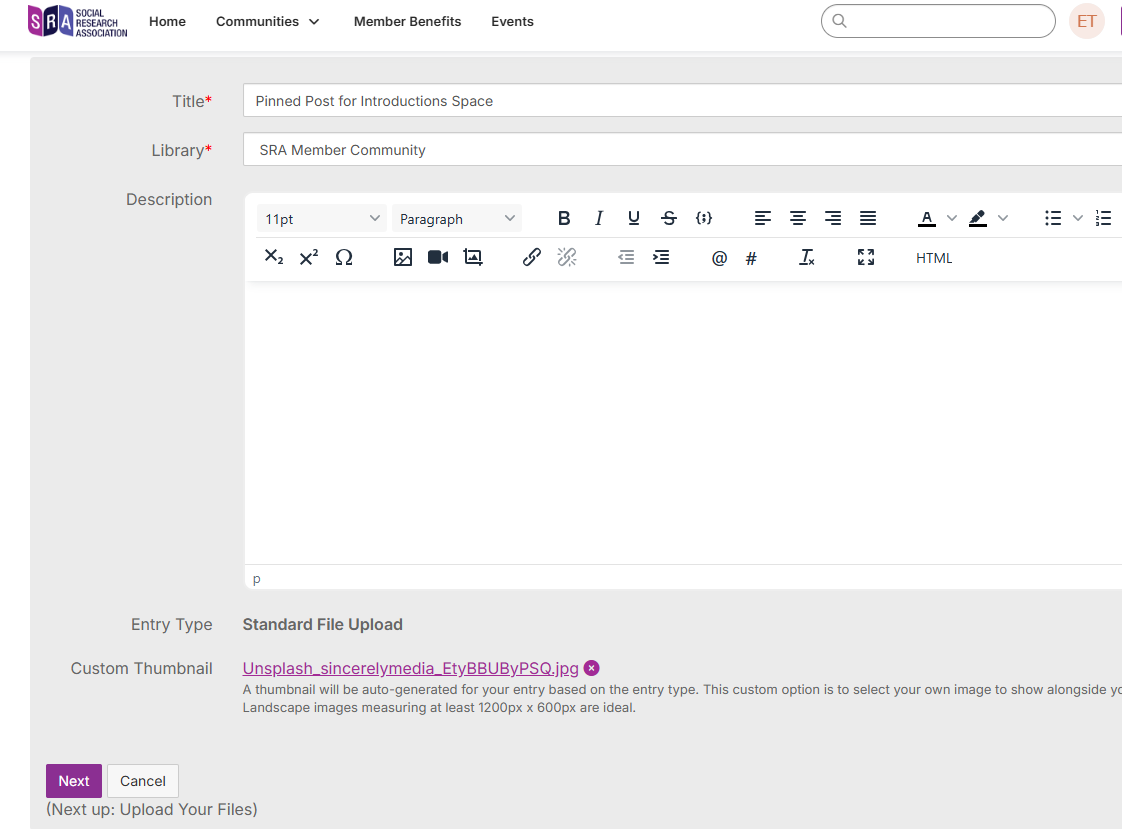
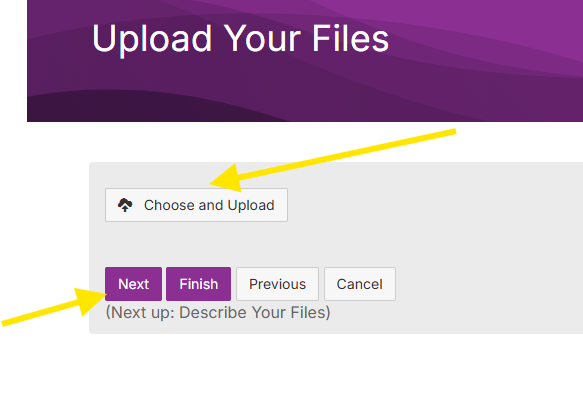
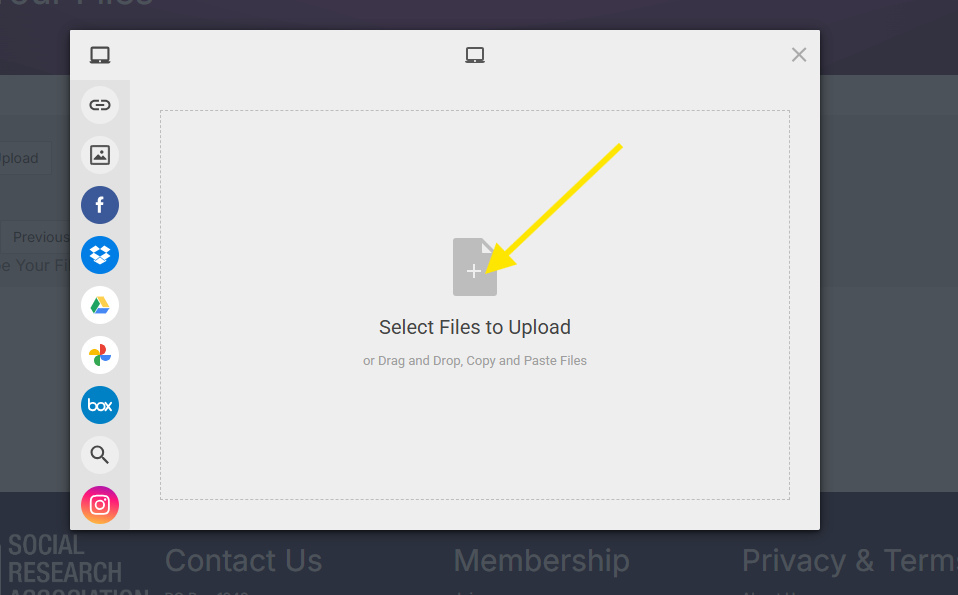
- Select “Next” if you want to further describe your files and/or add tags to your file. Otherwise, please click “Finish” to post your library entry
Q: What kind of files can I upload?
A: The system supports dozens of file types including hyperlinks, standard files (Word, Excel, PowerPoint), webinars, images and YouTube videos.
Q: What are the “tags” for?
A: Tags are great way to organize and categorize content on your site. Tags can be applied to blogs, library entries, events, and glossary terms. Tagged items are prioritized in the search results.
Tags (also known as #hashtags) are like behind-the-scenes organizers, helping to categorize the community's content and make it easier to find. For example, if 15 users tag their content with #2021conference, all 15 pieces of content can be viewed simply by clicking the tag